
Hyde Workshop News Tutorial Cain & Abel Security Case File
How a Hidden Crypto Miner Drained 50% CPU
A suspicious Windows process looked legitimate at first. Then the evidence revealed a hidden XMRig miner, Defender exclusions, remote-access malware warnings, and a deeper system compromise.
CPU power was drained by a hidden miner instead of normal user work.
Suspicious Defender exclusions attempted to weaken scanner visibility.
Offline scan, Safety Scanner, Temp inspection, and exclusion removal exposed the chain.
What happened?
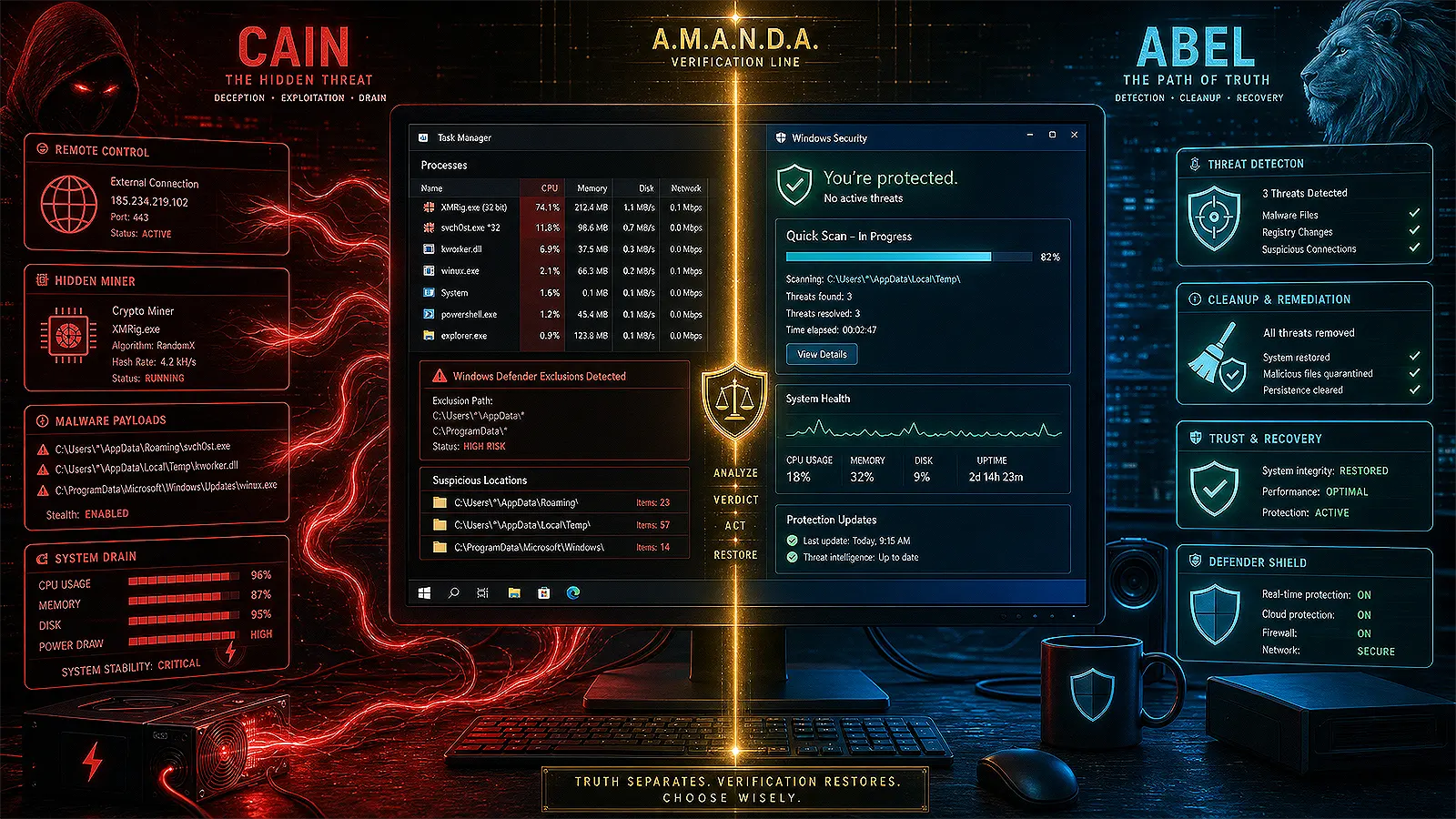
The incident began like a performance problem. Task Manager showed a process consuming nearly half of the CPU. At first, the name looked Microsoft-related. But the command line and parent process told a different story: the machine was being used for crypto-mining behavior, and other malware components were present.
Cain: the deception layer
- A Windows-looking process name created false trust.
- A miner executable was hidden in the user Temp folder.
- A suspicious launcher lived inside AppData Roaming.
- Defender exclusions attempted to reduce scanner visibility.
- Remote-access and infostealer-style detections raised the risk level.
AI Amy, AI Cleo, and AI Nancy map the security story
Instead of presenting this as a dry malware report, the page uses the Hyde Workshop AI team as a teaching system. AI Amy frames the workflow, AI Cleo studies the evidence, and AI Nancy delivers the cleanup verdict.

Workflow Guide
Explains how a slow PC complaint became a full malware investigation.

Evidence Analyst
Tracks suspicious paths, parent processes, Temp files, and command-line behavior.
Cleanup Verdict
Focuses on Defender exclusions, full scans, account safety, and recovery logic.
The attack chain was not one file. It was a system of concealment.
The key lesson is that a miner may only be the visible symptom. The deeper concern is the combination of persistence, exclusions, suspicious Temp files, remote-access detections, and possible credential exposure.
Cain risk signals
- High CPU usage while the system was idle.
- Suspicious executable files inside
AppData\Local\Temp. - A launcher hidden in
AppData\Roaming. - Defender exclusions for suspicious files and broad folders.
- Backdoor and infostealer-style detections from Microsoft tools.
Abel recovery signals
- Task Manager exposed the CPU drain.
- PowerShell revealed the parent process and command line.
- Microsoft Defender Offline Scan quarantined deeper threats.
- Microsoft Safety Scanner removed additional malware families.
- Manual Temp folder inspection confirmed the miner file.
How to investigate a hidden miner on Windows
This workflow is designed for creators, students, small business owners, and WordPress site managers who need practical Windows security steps without guessing or deleting critical system files.
Open Task Manager and sort by CPU
Start with evidence. Sort by CPU and look for processes using abnormal power while the PC is idle.
Check process path and parent process
A legitimate-looking name is not proof of safety. Inspect the file path, command line, and parent process before trusting it.
Inspect AppData and Temp folders
Malware often hides inside user-writable folders such as AppData\Roaming and AppData\Local\Temp. Do not double-click unknown executable files.
Remove suspicious Defender exclusions
Check Windows Security exclusions. Unknown executables, Temp folders, full user folders, and broad system paths should not be excluded without a clear reason.
Run Microsoft Defender Offline Scan
Use Defender Offline Scan when malware keeps relaunching, hides behind system-looking names, or appears persistent.
Run Microsoft Safety Scanner
After the offline scan, run Microsoft Safety Scanner as a second opinion. A layered infection can have multiple payloads.
Secure accounts from a clean device
If backdoor or infostealer detections appear, change passwords from a clean phone or another trusted device, not from the recently infected PC.
Do not trust the costume. Verify the behavior.
A file can use a familiar name and still perform hostile behavior. The difference between safe and unsafe is not only the filename. It is the command line, parent process, location, signature, behavior, and persistence.
In this case, the miner hid behind ordinary-looking Windows activity, while the real evidence appeared in CPU usage, Defender exclusions, Temp folder contents, and malware scan results.
Useful PowerShell checks
These commands are for visibility and investigation. Do not run random deletion commands from untrusted sources. When in doubt, inspect first, quarantine second, and scan again.
Check suspicious process names
Get-Process msvcp110,aspnet_compiler,plugin3,microsoftexe,sub,svchosts,microtk -ErrorAction SilentlyContinueSearch suspicious command lines
Get-CimInstance Win32_Process |
Where-Object {$_.CommandLine -match "nanopool|xmr|rx/0|msvcp110|154.12.226.43"} |
Select-Object ProcessId,ParentProcessId,Name,ExecutablePath,CommandLine |
Format-List
Public version note: replace personal usernames and exact private paths before publishing screenshots or logs.
Cain risk vs Abel recovery
| Signal | Cain Risk | Abel Response | Lesson |
|---|---|---|---|
| CPU drain | High: system power hijacked for mining | Task Manager revealed abnormal load | Performance issues can be security clues. |
| Fake trust | High: Windows-looking names created confusion | Path and command-line inspection exposed behavior | Names are not proof of legitimacy. |
| Defender exclusions | Critical: scanner visibility was weakened | Exclusions were reviewed and removed | Security exclusions must be rare and justified. |
| Remote-access detections | Critical: possible system compromise | Offline scan and Safety Scanner removed threats | Backdoor detections require account security review. |
| Recovery | Moderate: trust in the device was damaged | Full scans, password changes, and clean-device login | Cleanup includes both files and accounts. |
Cain-dominant attack. Abel-enabled recovery.
This was not just a slow computer. It was a layered security incident where a hidden miner, suspicious exclusions, and backdoor-style detections created a real compromise risk.
Cain exploited confusion: trusted-looking names, hidden folders, and scanner exclusions. Abel restored clarity through evidence: CPU review, process tracing, Defender Offline Scan, Safety Scanner, Temp folder inspection, exclusion cleanup, and account protection.
Final verdict: when malware can hide from scanners and drain your hardware remotely, system visibility becomes part of digital self-defense.
Build cleaner digital defenses
Hyde Workshop helps creators, students, and small business website owners understand AI tools, workflow risk, WordPress systems, and practical cybersecurity signals without drowning in jargon.
Publish safely: redact personal usernames, local paths, account names, IPs, tokens, and unredacted security screenshots before using real incident evidence in public articles.